This article delves into the recent ownership changes and privacy concerns surrounding the popular Mac menu bar management utility, Bartender. It also offers a comprehensive look at the best alternatives for managing and customizing your Mac menu bar.
I wanted to reflect on some recent news and updates about a popular Mac menu bar management utility that you might be familiar with – Bartender. This app has been a go-to for many Mac users, including myself, for managing and customizing the menu bar. However, there’s been a lot of buzz and some concerns surrounding the app recently. Let me break it down for you.
Bartender Story
Bartender is a popular macOS app designed to manage and customize your menu bar items.
It provides extensive control over your menu bar items, allowing you to hide and show icons, set custom hotkeys, use spacers to group icons, assign keyboard shortcuts, and trigger actions based on conditions.
Its features and customization options significantly improve workflow by reducing clutter and distractions, providing quick access to frequently used menu bar items, and enhancing productivity through efficient menu bar management.
The Silent Sale
Around March 2024, Bartender was quietly sold to a new owner. This information only came to light after MacUpdater, an app monitoring service (unfortunately, discontinued by its developer at this point and no longer receiving updates), warned users that Bartender updates starting from version 5.0.52 might be potentially unsafe. This warning raised many questions due to the lack of transparency regarding the sale and the new owner.
According to this Reddit thread, the new owners confirmed the acquisition and stated that they needed to re-sign the app with Apple’s certificates under their company name. They admitted that they should have notified users about the certificate change but failed to do so in the release notes. Instead, they mentioned it on their blog and informed users who reached out via email.
You can find another intense discussion of this case and alternatives to Bartender on the Hacker News site.
Who Are the Owners?
Initially, the new owners of Bartender have been elusive about their identity. They didn’t provide much information when users on Reddit asked for more details. The Bartender website was updated with information about the certificate change after users started seeing popups asking for new permissions. However, no background information about the purchase was provided.
Eventually, it came to light that Ben Surtees, the original developer of Bartender, sold the app to a company called Applause about three months ago. Applause has not officially commented on the sale in the beginning, leaving users in the dark about their intentions and future plans for Bartender.
Privacy Concerns
One of the biggest concerns among users is the potential impact on privacy and security. Bartender requires extensive permissions to operate in macOS, including screen recording, which is crucial for its functionality. Users are understandably worried about these permissions being misused, especially with the introduction of a new, unknown owner.
Reports surfaced that the new version of Bartender included code associated with collecting analytics data on users. This information wasn’t mentioned in the release notes, adding to the distrust among users. The company behind MacUpdater explained that they issued the warning due to these privacy concerns.
However, following some backlash, the new owners removed the analytics framework in the 5.0.53 build and updated their privacy policy. Their latest blog post, “Let’s Try This Again”, explains the situation in detail, which should have been done from the beginning. While this is a step in the right direction, many users still feel uneasy about the changes.
Latest Safe Version
Since this Reddit post by user misiek_to_ja about the latest secure version of Bartender explains all the technical details very well, I’ll just repost it here in full, as is:
Use the latest safe version of Bartender 5 (5.0.49). It’s signed by the original developer with the old signing key and contains no telemetry.
Update from May 20, 2026: unfortunately, the direct download link for build 5.0.49 no longer works, and the original file is no longer available on macbartender.com servers. The SHA checksum verification instructions below remain useful for those who already have version 5.0.49 installed.
Verify its SHA256 checksum in terminal: shasum -a 256 'Bartender 5.dmg'
It should be: 0ce40bb5d6f0605c91ae2dc605d8cb7c534823ae5024cbc042ef417b8013071d
If you already have 5.0.49 installed and you are worried about its integrity, check the binary checksum like this:
shasum -a 256 '/Applications/Bartender 5.app/Contents/MacOS/Bartender 5'
Disable autoupdates in the app and preferably use a firewall software like Little Snitch or LuLu to block all network communication from Bartender.
Bartender Alternatives
Given the uncertainty surrounding Bartender, you might be wondering about top alternative to Bartender for managing your Mac menu bar. Here are some best Bartender app alternatives that offer similar functionality.
Vanilla
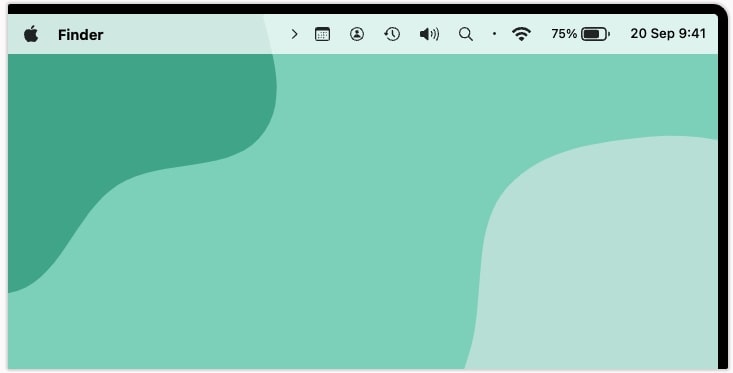
Vanilla lets you hide menu bar icons by dragging them between hidden and visible sections. The Pro version adds features like keyboard shortcuts, start at login, and auto-hide after 5 seconds.
Vanilla App Screenshot
Basic Version (Free): Vanilla allows you to hide menu bar icons easily. You can hold the Command key and drag icons between the hidden and visible sections of your menu bar.
Pro Version ($10): Upgrading to Vanilla Pro unlocks several additional features:
Keyboard Shortcuts: Set up a custom shortcut to toggle menu bar and desktop icons.
Removed Section: Hide items that you rarely need by placing them in a removed section.
Start at Login: Ensure Vanilla starts automatically when you log into your Mac.
Auto-Hide: Automatically hide icons five seconds after you toggle them in.
Vanilla is perfect if you want a straightforward and easy-to-use solution for managing your menu bar icons with a minimal learning curve. Vanilla Pro is a one-time purchase and works on up to 10 Macs.
Ice menu bar management tool (free or pay what you want) offers a range of features such as always-hidden sections, show on hover or click, hotkeys, launch at login, and menu bar appearance options.
Ice Menu Bar App Screenshot
Features:
Hide Items: Ice allows you to hide items in your menu bar, reducing clutter.
Hidden Section: Designate certain icons to remain hidden until you choose to reveal them.
Show Options: Customize how hidden icons are revealed, whether on hover, click, scroll, or swipe.
Automatic Rehide: Automatically hide icons again after a set period.
Hotkeys: Use keyboard shortcuts for quick access to hidden icons.
Launch at Login: Ensure Ice starts with your system.
Appearance Options: Customize the appearance of menu bar to suit your preferences.
Overlap Correction: Fixes any overlap issues between menu bar icons and app menus.
Ice is good for those users who want a macOS menu bar management tool with a customization options for how and when icons are displayed.
iBar app (free) hides menu bar icons which can be revealed in a floating bar extending below the notch on MacBook Air and MacBook Pro.
iBar App Screenshot
Features:
Floating Bar: Hides menu bar icons, which can be revealed in a floating bar that extends below the notch on MacBook Air and MacBook Pro models.
Notch Support: Designed specifically to work seamlessly with the MacBook notch, ensuring that hidden icons are accessible without cluttering the menu bar.
iBar is a great option for MacBook users who want to utilize the space below the notch effectively while keeping their menu bar tidy.
This app ($3.99) has a similar interface to Bartender and includes sections for shown, hidden, and always hidden items, as well as extensive menu bar appearance settings.
Barbee App Screenshot
Features:
Familiar Interface: Provides a familiar experience for Bartender users.
Sections for Icons: Organize icons into shown, hidden, and always hidden sections.
Appearance Settings: Customize the appearance of your menu bar to fit your style.
Spotlight-Like Search: Quickly search your menu bar items in a floating window similar to Spotlight.
Barbee is ideal for users looking for a Bartender-like experience with similar organization and customization options.
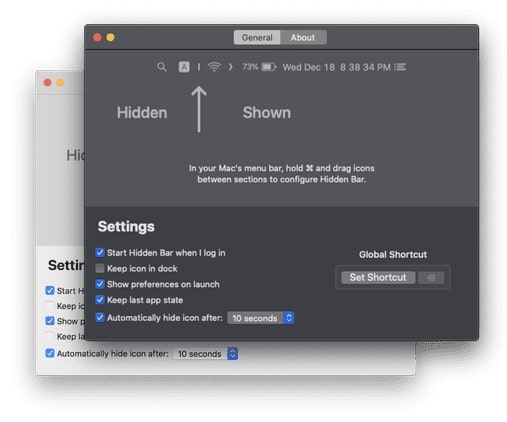
A free and lightweight tool that allows you to drag a divider between icons to separate hidden and shown sections. It includes many features, like launch at login, auto-hide, and a global shortcut.
Hidden Bar App Settings Screenshot
Features:
Simple Interface: Drag a divider between icons in the menu bar to separate hidden and shown sections.
Launch at Login: Automatically start Hidden Bar when you log into your Mac.
Auto-Hide Durations: Set specific durations for how long icons should remain hidden before reappearing.
Global Shortcut: Use a global shortcut to quickly show or hide hidden icons.
Full Menu Bar Mode: Expand your menu bar to display all icons when needed.
Hidden Bar is a lightweight and straightforward solution for users who want an easy way to manage their menu bar icons without too many additional features.
By the way, Dwarves Foundation has many other open source apps worth checking.
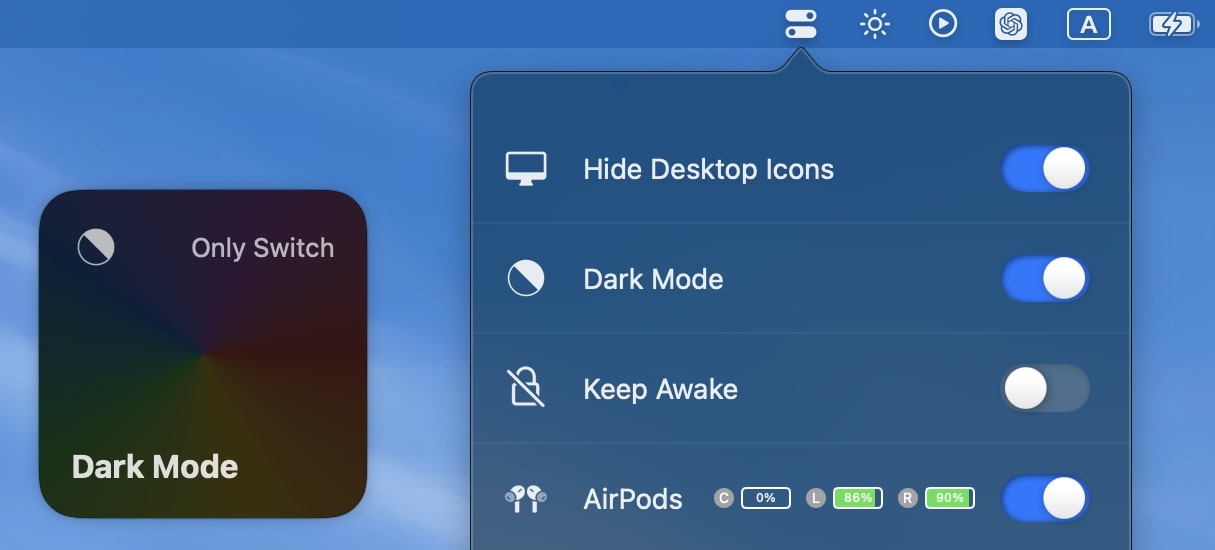
More than just a menu bar management tool, OnlySwitch (free) offers customizable toggle switches for system and other settings like hiding desktop icons, dark mode, and hiding the MacBook notch.
OnlySwitch Settings Screenshot
Features:
Toggle Switches: Offers a broad range of customizable toggle switches for quick access to system settings and other functionalities.
Hide Desktop Icons: Quickly hide or show desktop icons with a toggle switch.
Dark Mode: Switch between light and dark modes effortlessly.
Hide MacBook Notch: Hide the notch on MacBook models with a simple toggle.
Mute Microphone: Toggle microphone muting for privacy.
Additional Settings: Access other useful toggles like Do Not Disturb, screen saver, Night Shift, and more.
OnlySwitch is more than just a menu bar management tool; it’s a multifunctional utility that offers quick access to various system settings and features, making it a versatile addition to any Mac user’s toolkit.
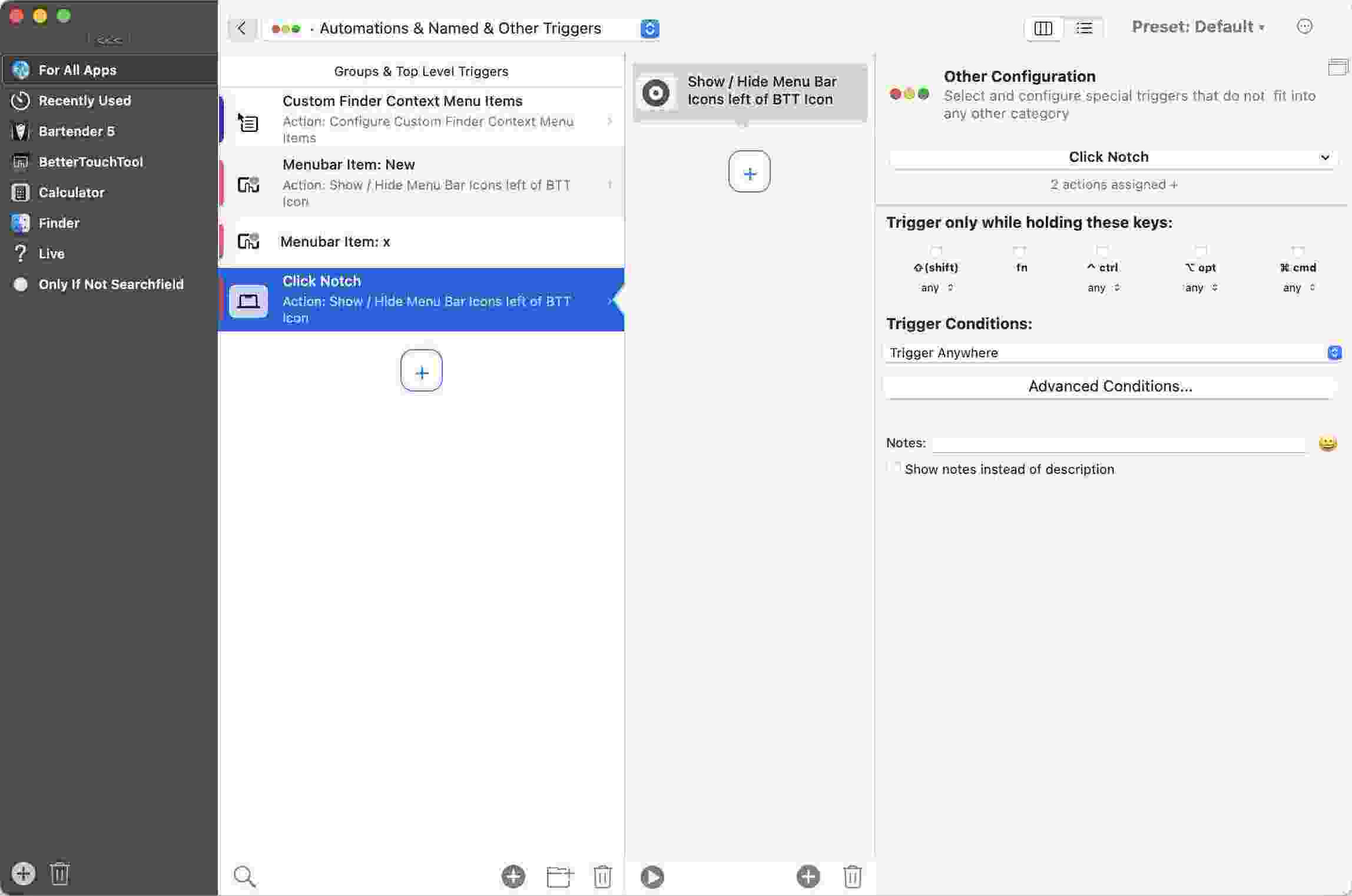
For BetterTouchTool users, there’s a comprehensive tutorial on how to use the utility to hide menu bar items, offering another way to customize your Mac experience, created by the developer of BTT.
BetterTouchTool Settings Screenshot
Features:
Customization: Use BetterTouchTool to hide or rearrange menu bar items.
Advanced Gestures: Customize gestures and shortcuts to control your menu bar and other Mac functions.
Automation: Set up automated tasks to manage your menu bar items based on specific conditions or triggers.
BetterTouchTool is perfect for power users who want to deeply customize their Mac experience, including advanced menu bar management. App is free with in-app purchases for advanced features.
Price: Free (with in-app purchases for advanced features)
Dozer is a macOS app that allows you to organize and manage your menu bar icons efficiently. With Dozer, you can create groups of icons that can be hidden or shown with a click.
Dozer App Screenshot
Features and Usage:
Move icons you want to hide until clicked to the left of the first Dozer icon.
Move icons to hide until option-clicked to the left of the second Dozer icon.
Hold the command (⌘) key and drag to move the menu bar icons.
Left-click a Dozer icon to hide/show the first group of menu bar icons.
Option-left-click a Dozer icon to show the second group of menu bar icons.
Right-click a Dozer icon to open the settings.
With Dozer, you can declutter your menu bar and improve your workflow by keeping only the necessary icons visible when you need them.
Keep in mind however that the app looks abandoned. The latest stable version 4.0.0 was published on August 20, 2019. There are two pre-release versions, the latest of which is 4.2.0 dated July 13, 2020. But it’s still working.
The sale of Bartender and subsequent issues have definitely shaken its user base. Despite efforts by the new owners to address concerns, the lack of transparency and initial missteps have left a lasting impact.
Privacy concerns and other issues have caused many users to seek alternatives. Fortunately, there are numerous options available that offer similar or better functionality for managing your Mac menu bar.
If you’re uncomfortable with the changes, exploring alternative menu bar management tools might be a good idea. Various free and paid options are available, each offering unique features to customize your menu bar.
Whether you prioritize simplicity, customization, or additional functionalities, there’s a menu bar management tool out there for you. Take some time to explore and find the one that best suits your needs.