Hugo Shortcode for Interactive Tables from CSV Files
Drop a CSV into your project, add one line to your post, and get a sortable, responsive, accessible HTML table with zero manual markup.
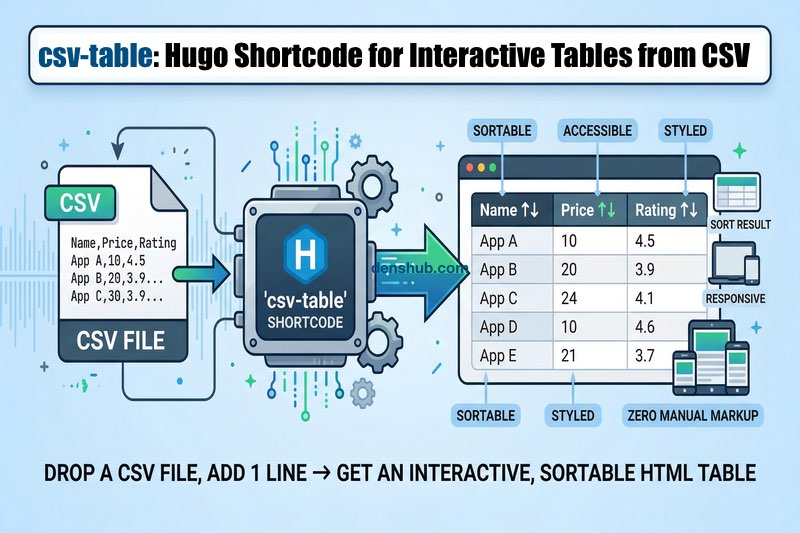
If you’ve ever tried to display tabular data on a Hugo site, you know how quickly things go sideways. Say you have a perfectly good CSV file with app rankings, price comparisons, or benchmark results. To turn it into a nice table on the page, you’ll either have to wrestle with Markdown markup or write HTML by hand. Both options are mediocre, and both scale poorly.
I ran into this often enough that I eventually built a proper tool, a shortcode called csv-table. You point it at a CSV file and get a styled, sortable, responsive HTML table. One line in your content, zero manual markup.
Why Markdown tables don’t work
Anyone who’s tried to build a Markdown table larger than 3x3 knows the pain. Brian Wisti put it well in his post on CSV and Data Tables in Hugo: reading them is easy, but maintaining them without editor plugins is misery. And he’s right. The problems start immediately:
Markdown table formatting is fragile. Miss one pipe character or accidentally add an extra column in a row, and instead of a table you get a mess of characters. No error message, just broken layout.
They don’t scale. A 5x5 table works fine. Thirty rows from Excel, not so much. Every time the data changes, you’re manually realigning all those vertical bars again.
No interactivity. Thirty rows of data, and the reader can’t sort by price, rating, or name. Markdown simply can’t do that.
And finally, the data is hardwired into the article text. It doesn’t exist separately. You can’t reuse the same table in another post, update the data independently from the text, or generate it with a script and just plug it in.
What already exists and why it’s not enough
Hugo has built-in tools for working with data. The transform.Unmarshal function can parse CSV into arrays, and several people in the community have shown how to put this to use.
The csv-to-table shortcode by Joe Mooring is a solid solution. It works with page resources, section resources, and global resources, handles errors properly, supports captions, custom delimiters, and optional header rows. For straightforward CSV-to-HTML conversion, it’s a great starting point.
Brian Wisti (linked above) took a different route: he embedded CSV data directly inside the shortcode tags rather than referencing an external file. He also experimented with JSON-based data tables and a line-oriented list-table format. The post is interesting and shows well how far you can push Hugo shortcodes with some ingenuity.
Both approaches gave me ideas, but neither solved my problem entirely. I needed sorting, mobile responsiveness, per-column alignment, the ability to hide columns and limit rows, plus proper accessibility markup. And not as separate pieces, but as a single tool I could use everywhere.
How csv-table works
Your data lives in a CSV file in Hugo’s assets directory. In your article, the call looks like this:
{{< csv-table file="app-rankings.csv" >}}That’s it. Hugo parses the CSV at build time via transform.Unmarshal (no custom parser needed) and generates a semantic HTML table with proper <thead>, <tbody>, scope attributes, ARIA roles, and aria-sort indicators.
On the client side, tablesort.js handles the interactivity: click a column header to sort ascending, click again to sort descending. Sorting works correctly with formatted numbers, percentages, and currency values.
Simple by default, flexible on demand
The principle is straightforward: convention over configuration. Default settings cover 80% of cases. The remaining 20% are handled by parameters, not by forking the template.
Here’s what a more detailed call looks like:
{{< csv-table
  file="sales.csv"
  caption="Q1 Sales by Region"
  sortBy="Revenue"
  order="desc"
  limit=10
  col_right="Revenue,Units"
  col_hide="Internal_ID"
  compact=true
>}}
This takes the sales.csv file, shows only 10 rows with the highest Revenue, right-aligns numeric columns, hides the Internal ID column, and enables compact mode with tighter layout. The table caption appears at the top.
The full set of parameters covers everything I’ve needed in practice:
caption- table titlesortByandorder- initial sort (ascending by default)limit- maximum number of displayed rowscol_hide- hide columns without editing the source filecol_nowrap- prevent text wrapping in a columncol_left,col_center,col_right- per-column alignmentcol_width- explicit CSS widths via<colgroup>header(value “hide”) - hide the header rowfont_monoandfont_size- font controlcompact- tight layoutresponsive- responsiveness mode: horizontal scroll or cards on mobileclass- additional CSS classes
One thing worth noting: all column parameters work by name, not by index. You write col_hide="Email,Phone", not col_hide="3,5". Internally, the shortcode builds a header-to-index map, so lookups are fast while the call stays readable. And if you add or rearrange columns in your CSV, the shortcode won’t break.
Tables on small screens
Tables and mobile devices are a painful combination. The shortcode offers two modes.
The default is scroll: the table wraps in a horizontally scrollable container. The table structure is preserved, which matters when columns need to be compared side by side (comparison tables, spec sheets).
The alternative is stack: each row turns into a card on narrow screens. Each cell gets prefixed with its column name via data-label attributes and CSS ::before pseudo-elements. This is pure CSS, no JavaScript. It works well for data where each row is a standalone record (a list of apps, a product catalog), and the reader benefits from seeing all fields for one item at once.
What happens under the hood
A few technical details for the curious.
The shortcode’s CSS and JavaScript load once per page, even if there are five tables on it. Hugo’s Scratch mechanism tracks whether the assets have already been included and prevents duplicate <link> and <script> tags.
Both CSS and JS go through Hugo’s asset pipeline: in production they’re minified, and filenames include a hash for cache busting. The tablesort library can be loaded from a CDN (configurable in theme settings) or included locally if the site avoids external requests.
The CSS is built on custom properties and supports dark mode via the [data-theme="dark"] selector. If your theme already toggles that attribute, the tables pick up the theme automatically.
On the accessibility side: the markup includes role attributes, scope on header cells, and aria-sort indicators that update dynamically on sorting. Screen readers can navigate the table structure and understand the current sort order.
If something goes wrong (file not found, wrong path, broken CSV), the shortcode shows a clear error message right where the table should be. No silent failures, no broken layout.
Where this really saves time
The shortcode has been running on my blog for a while now. Here are the scenarios where it helps the most.
When data changes frequently (monthly rankings, quarterly figures), I just update the CSV and rebuild the site. The post itself stays untouched.
For example, my Top Raycast Extensions post uses csv-table to display a full ranking of extensions with sorting, row limits, and hidden columns. All the data is a single CSV file that I regenerate periodically. Updating the post = replacing the file + rebuilding.
When data comes from a script or a spreadsheet export, the CSV goes straight into the project with no reformatting whatsoever.
When I need to show a “Top 10” from a larger dataset, the limit parameter handles it without trimming the source file.
When the same data is needed in multiple posts with different presentations (different visible columns, different sorting), I reference one CSV with different parameters. One data source, multiple views.
I want one too!
The code isn’t publicly available yet. I built it for my own Hugo theme (“domino”) and haven’t had time to package it into a separate, properly documented module. If there’s enough interest, I’ll publish it as a reusable Hugo module. Let me know if you’d find it useful.
All the building blocks are well-documented: transform.Unmarshal for CSV parsing, a map-based parameter system for column operations, tablesort.js for client-side sorting, and CSS custom properties for theming.
The complexity isn’t in any single one of these parts, but in making them work together: ARIA attributes, responsive modes, asset deduplication, error handling, and sensible defaults to keep the simple cases simple.
One email when there's a new post.