Screen Studio for Mac Review
A comprehensive review of Screen Studio – the easy-to-use screen recorder that’s transforming content creation, development, and education with high-quality recordings and powerful features.

Ever tried recording your screen only to end up with blurry footage, messed-up audio, or files that take forever to load? Looking for the best screen recorder for creating professional tutorials and product demos? After testing dozens of screen recording software options and spending countless hours fighting with various tools, I’ve discovered why Screen Studio (check it out here) is becoming a popular Camtasia alternative for content creators and educators.
Why This Review
Let me share what drove me nuts with other screen recorders:
- Recordings would randomly stop in the middle of an important demo
- Audio would either not record at all or sound like it was recorded underwater
- My computer would slow to a crawl while recording
- Videos looked pixelated and unprofessional
- Editing was a complete nightmare
Sound familiar? These are exactly the problems Screen Studio fixes, and that’s why I decided to write this comprehensive review - to help others who are probably pulling their hair out with the same issues.
The journey to finding the perfect screen recording tool wasn’t straightforward. I had tried countless solutions, from free open-source options to expensive enterprise software. Each had its drawbacks – some were too basic, others overwhelmingly complex, and most required extensive post-processing to achieve professional-looking results. Screen Studio struck that perfect balance I had been searching for.
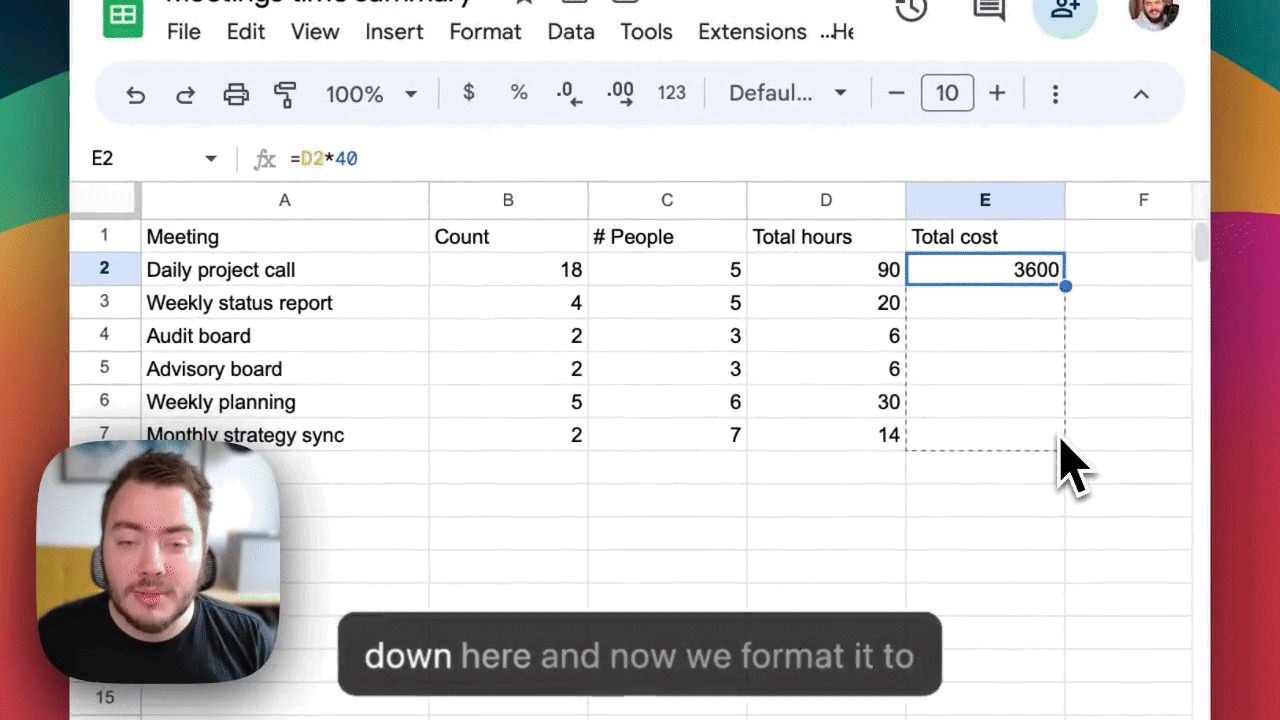
Automatic zoom during screen recording.
Key Features
Hassle-Free Recording
Remember all those times you finished a perfect recording only to find out the audio didn’t work? Screen Studio has separate controls for your mic and system audio, so you can actually check everything before you start. Plus, it automatically removes background noise - no more apologizing for your neighbor’s lawn mower in the background!
What’s even better, Screen Studio now includes AI-powered subtitle generation. You can add captions to your videos in minutes, and easily edit the transcript if needed. This is a game-changer for creating accessible content and reaching international audiences.
Professional Quality
One thing that used to drive me crazy was trying to show small text or UI details in my recordings. They always came out blurry or too small to read. Screen Studio records in 4K, and better yet, it automatically zooms in on important stuff like:
- Menu items you’re clicking
- Text you’re typing
- Buttons you’re hovering over
- Code sections you’re explaining
Plus, you can now export your videos in multiple formats perfect for any platform:
- 16:9 for YouTube and standard presentations
- 9:16 for TikTok and Instagram Stories
- 1:1 for social media posts
- 4:3 for classic format
- 3:4 for vertical content
Smart Features
Here’s where Screen Studio really shines:
Advanced Recording
- Crystal-clear 4K resolution recording
- Separate system audio and microphone tracks
- Support for multiple displays
- Partial screen recording when needed
- Built-in noise reduction that actually works
- iPhone and iPad screen recording support
- Export as GIF option for quick demos
Automatic Enhancement
You know that jerky, robotic cursor movement in most screen recordings? Super annoying, right? Screen Studio solves this with:
- Automatic zoom that intelligently focuses on important content
- Smooth cursor movements and click animations
- Background removal for webcam recordings
- Instant replay feature for highlighting key moments
- Customizable cursor styles and sizes
- Branded background patterns or custom images
Quick Fixes Without the Fuss
Here’s what sold me: the built-in editing tools are right there, and they actually make sense. Previously, I spent about 45 minutes editing a 5-minute tutorial. With Screen Studio, I can polish the same content in under 10 minutes. No more:
- Digging through complicated menus
- Wrestling with confusing timeline controls
- Spending hours trying to cut out a 5-second mistake
- Fighting with export settings
Just quick, simple tools that do what you need.

Clean, professional interface that doesn’t overwhelm you with options
Real Applications
Here’s what I do with Screen Studio every week:
Team Training & How-To Videos
I create a lot of training content for my team. Just last week, I made a 10-minute video showing how to use our new project management system. The auto-zoom feature was super helpful - it automatically zoomed in when I was explaining small UI elements, making everything crystal clear for viewers.
Software & System Setup Tutorials
As a developer, I often need to explain complex software setups to others. Screen Studio makes this so much easier. Recently, I recorded a step-by-step guide for setting up a local development environment. The smooth cursor movements and automatic highlighting of important areas made the process easy to follow, even for beginners.
Programming Explanations
When I need to explain code to junior developers or show how certain features work, Screen Studio really shines. The automatic zoom on code sections is perfect - no more squinting at tiny text! Plus, the recording quality is so good that all the code is perfectly readable.
Bug Reports and Technical Documentation
Instead of writing lengthy emails trying to explain issues, I now send quick, professional-looking screen recordings that clearly demonstrate problems. It’s cut my documentation time in half and made it much easier for others to understand the issues.
Client Demos & Presentations
The webcam feature with background removal is a game-changer for client presentations. I record product demos showing new features, and it looks super professional with my camera feed in the corner, without my messy home office in the background. Clients often comment on how polished these recordings look.
Webinar Recordings
I host monthly webinars about development best practices, and Screen Studio handles these like a champ. The separate audio tracks for my mic and system sounds make it easy to balance the audio perfectly in the recording. Plus, sharing the recordings afterward is a breeze with the built-in sharing features.

The editing screen that won’t give you a headache - everything you need, nothing you don’t
Competitor Comparison
Let’s be real about how Screen Studio stacks up against the alternatives:
Screen Studio vs Camtasia ($249.99/year)
- Price: More affordable ($229 one-time vs $249.99/year) ✓
- Learning Curve: Way easier to master, no endless menu diving ✓
- Features: Superior AI-powered features that work automatically ✓
- Stability: Actually works without crashing or freezing ✓
- Export Options: Same professional output quality ✓
Screen Studio vs Loom ($12.50/month)
- Video Quality: Much higher resolution options ✓
- Editing Features: More comprehensive editing toolkit ✓
- Professional Features: Advanced animation and zoom capabilities ✓
- Recording Quality: Smoother, more professional recordings ✓
- Sharing: Both offer easy sharing, but Screen Studio has more options ✓
Screen Studio vs OBS Studio (Free)
- Ease of Use: No setup headaches, works right away ✓
- Focus: Specialized for tutorial and demo creation ✓
- Built-in Editing: Professional editing tools included ✓
- Performance: Won’t slow your computer to a crawl ✓
- Learning Curve: Minutes instead of hours to master ✓
| Feature | Screen Studio | Camtasia ($249.99/year) | Loom ($12.50/month) | OBS Studio (Free) |
|---|---|---|---|---|
| Pricing | $229 (one-time) ✓ | $249.99/year | $12.50/month | Free |
| Ease of Use | Very easy to master ✓ | Complex, menu-heavy | Simple, but limited | Requires setup and learning |
| AI-Powered Features | Yes, automatic ✓ | No | No | No |
| Stability | Works reliably ✓ | May crash or freeze | Stable | Performance-heavy |
| Video Quality | High resolution ✓ | High | High | High |
| Editing Tools | Professional, built-in ✓ | Advanced | Basic | No built-in editing |
| Advanced Features | Animations, zoom ✓ | Limited | Limited | Extensive (but manual) |
| Performance | Lightweight ✓ | Can slow down system | Light | Heavy on system resources |
| Recording Quality | Smooth, professional ✓ | Good | Good | Good but depends on setup |
| Export Options | Professional quality ✓ | Professional | Standard | Varies by settings |
| Sharing Options | Multiple sharing options ✓ | Standard | Easy sharing | No built-in sharing |
| Best For | Tutorials, demos | Editing-heavy workflows | Quick recordings | Streaming, manual setups |
Feature comparison between popular screen recording software options - Screen Studio leads in ease of use and automatic features
Pricing
Screen Studio offers two straightforward pricing options, and I’ll help you figure out which one might work best for you:
Monthly Subscription - $9/month
- Everything included in the software
- Lifetime updates and support
- Easy sharing features
- Works on 3 Mac devices
- Cloud AI features (Coming soon)
- Team collaboration tools (Coming soon)
- Billed yearly at $108
Best for: People who want the latest features and don’t mind a subscription, or teams who need to collaborate and share recordings regularly.
One-Time Purchase - $229
- All Screen Studio features
- One year of updates
- One year of shareable links
- Works on 3 Mac devices
- Optional renewal for $109/year
- Keep using your version forever, even without updates
Best for: Individual creators who prefer to own their software and don’t mind occasional renewal fees for updates.
I went with the one-time purchase because I hate subscriptions, and it’s actually worked out cheaper for me. Plus, even if I decide not to renew, I can keep using the version I have forever.
Who Should Get Screen Studio?
Based on couple of months of intensive use, here’s who I think would benefit most from Screen Studio:
Perfect For:
Software Developers & Technical Teams
- Creating code walkthroughs
- Documenting features
- Recording bug reports
- Making dev environment setup guides
Educators & Trainers
- Creating online course content
- Recording software tutorials
- Making how-to guides
- Developing training materials
Product Teams
- Recording product demos
- Creating feature announcements
- Making user guides
- Capturing user testing sessions
Content Creators
- Making tutorial videos
- Creating educational content
- Recording software reviews
- Producing technical content
Support Teams
- Creating help documentation
- Recording troubleshooting guides
- Making response videos
- Documenting processes
Screen Studio Overview
Final Verdict
Here’s the thing - I used to spend way too much time fighting with screen recording software. Screen Studio just works. No crashes, no weird glitches, no trying to figure out why my audio disappeared halfway through. Here’s what really makes it worth the investment:
Time Savings
- Cut my recording time in half
- Reduced editing time by 75%
- No more re-recording due to technical issues
- Quick sharing and export options
Professional Results
- Crystal clear 4K recordings
- Smart automatic zooming
- Smooth cursor movements
- Professional-looking final videos
Peace of Mind
- Reliable performance
- No crashes or lost recordings
- Easy to use when you need it
- Professional support if you need help
Yes, there are cheaper options out there, but ask yourself: how much is your time worth? Because I’ve easily saved 2-3 hours a week not dealing with technical problems and editing hassles. That alone makes it worth the investment for me.
When you factor in the time saved and the professional quality of the output, Screen Studio (try for yourself) proves its worth many times over. Whether you’re creating educational content, product demos, or technical documentation, this tool will help you produce results that stand out in today’s crowded digital landscape.
Happy recording!
🎥
One email when there's a new post.


